The page you requested does not exist. For your convenience, a search was performed using the query blog index keep your florida shots account patient information safe.
Search the Site
Find the answers, trainings, or information you’re looking for with keyword search.
Page
Page
… Go on Record with Florida SHOTS Keeping track of your child’s shot records has … Never worry about lost or misplaced vaccine records again. Keep up with your immunization history with Florida SHOTS. … Patients & Parents …
Page
Page
… Safe & Secure Vaccine Records Florida SHOTS is a free, statewide, centralized online immunization … system (IIS) that helps health care providers and schools keep track of immunization records to ensure that patients … Meet Florida’s free, statewide, centralized online immunization …
File
File
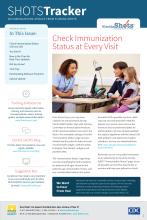
… data upload information. www.flshotsusers.com Florida SHOTS Blog Find the latest immunization news and registry updates. … can download them here: www.cdc.gov/vaccines/schedules/ hcp/index.html Remember to use every patient encounter as an … to see all possible vaccines that may be due or overdue and keep your patients on track! Every year we send out a …
Page
Page
… for school, childcare, and camps. Tools and reports to keep your patients up to date with the latest vaccine … Data Exchange Instantly report and access immunizations in Florida SHOTS in real-time and eliminate the need for dual … Fast, accurate record keeping makes managing vaccinations easier. …
File
File

… Software Providers Upload Update Florida SHOTS Blog Find the latest immunization news and system updates. … best way to help patients and other providers’ offices by keeping shots records all in one place for every patient. 2 … 3 https://www.cdc.gov/vaccines/pandemic-guidance/index.html …
File
File
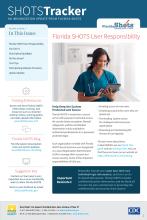
… Software Providers Upload Update Florida SHOTS Blog Find the latest immunization news and system updates. … E F R O M F LO R I D A S H OTS Suggestion Box Contact us! Your input is very important to us as we continually work to … flshots@flhealth.gov Florida SHOTS User Responsibility Help Keep the System Protected and Secure Florida SHOTS is …
Page
Page
… Sign up for emails Email address * *Required Florida County Select one... Alachua Baker Bay Bradford … Unknown Which lists would you like to subscribe to? General Blog updates Health care provider Medical software provider … Stay informed with regular updates from the Florida SHOTS team. …
File
File

… Software Providers Upload Update Florida SHOTS Blog Find the latest immunization news and system updates. … E F R O M F LO R I D A S H OTS Suggestion Box Contact us! Your input is very important to us as we continually work to … https://www.cdc.gov/vaccines/covid-19/info-by-product/index.html …
Blog Post
Blog Post
… Florida SHOTS User Con fi rmation Keeping the System Safe … " menu option within the system, you can find out who your Local Organization Administrator (LOA) is! Once you …
File
File

… for Children Program” form to document eligibility for your own files. Patient Eligibility Screening Record Florida … not meet eligibility criteria The health care provider must keep in the office a record of all children 18 years of age … please visit http://www.cdc.gov/vaccines/hcp/vis/index.html. • VIS Recipient: Select the person receiving the …