The page you requested does not exist. For your convenience, a search was performed using the query blog index electronically certifying a dh.
Search the Site
Find the answers, trainings, or information you’re looking for with keyword search.
Page
Page
… Form 680 Schools and day care centers accept Florida SHOTS’ electronically certified DH Form 680s (authorized by … can now log on to our secure server directly and print electronically certified copies of DH Form 680 from their … IMM Id and Certification PIN of their child's DH Form 680. Electronically certified shot records are available for …
File
File
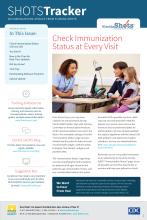
… data upload information. www.flshotsusers.com Florida SHOTS Blog Find the latest immunization news and registry updates. www.flshotsusers.com/blog Suggestion Box Contact us! Your input is very important … can download them here: www.cdc.gov/vaccines/schedules/ hcp/index.html Remember to use every patient encounter as an …
File
File
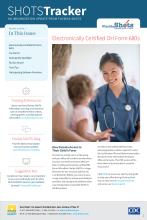
… | Tallahassee, FL 32399-1719 | www.flshots.com SHOTSTracker Electronically Certified DH Form 680s You Said It Data … Tech Tips Participating Software Providers Florida SHOTS Blog Find the latest immunization news and system updates. … SHOTS is a huge timesaver for you and your patients. By e-certifying the DH680, you not only save a copy accessible by …
Page
Page
Do your part to help doctors Become a Florida SHOTS certified EHR provider and give your clients the power they need to better manage their immunization records. As a Florida SHOTS certified EHR provider you will be: Meeting the ONC “Meaningful Use” …
File
File

… Software Providers Upload Update Florida SHOTS Blog Find the latest immunization news and system updates. www.flshotsusers.com/blog Access real-time Florida SHOTS information, training, … 3 https://www.cdc.gov/vaccines/pandemic-guidance/index.html …
File
File

… Recipient,” or visit http://www.cdc.gov/ vaccines/hcp/vis/index.html. • VIS Recipient: Select the person receiving the … link is clicked, the Form 680 selection criteria appears. Electronically Certifying a Form 680 You may also create an electronically …
File
File
… Software Providers Upload Update Florida SHOTS Blog Find the latest immunization news and system updates. www.flshotsusers.com/blog Access real-time Florida SHOTS information, training, … http://www.cdc.gov/ www.flshotsusers.com/blog www.flshotsusers.com https://www.flshotsusers.com …
File
File
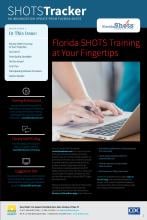
… Software Providers Upload Update Florida SHOTS Blog Find the latest immunization news and system updates. www.flshotsusers.com/blog Access real-time Florida SHOTS information, training, … Yes! Healthcare providers can generate and electronically certify DH680 forms in Florida SHOTS and …
File
File

… Recipient,” or visit http://www.cdc.gov/vaccines/hcp/vis/index.html. • VIS Recipient: Select the person receiving the … to the intended use of the form and status of the patient. Electronically Certifying a Form 680 You may also be able to create an …
File
File

… Recipient,” or visit http://www.cdc.gov/vaccines/hcp/vis/index.html. • VIS Recipient: Select the person receiving the … to the intended use of the form and status of the patient. Electronically Certifying a Form 680 You may also be able to create an …