- The page you requested does not exist. For your convenience, a search was performed using the query blog patient retrieval final.
- The page you requested does not exist. For your convenience, a search was performed using the query blog index page.
Search the Site
Find the answers, trainings, or information you’re looking for with keyword search.
File
File
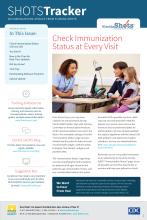
… data upload information. www.flshotsusers.com Florida SHOTS Blog Find the latest immunization news and registry updates. … One noticeable change is that the “Immunization Status” page has been divided into the patient’s status for each … can download them here: www.cdc.gov/vaccines/schedules/ hcp/index.html Remember to use every patient encounter as an …
File
File

… Software Providers Upload Update Florida SHOTS Blog Find the latest immunization news and system updates. … 3 https://www.cdc.gov/vaccines/pandemic-guidance/index.html … be set up to upload shot data to Florida SHOTS? Check out page 3 of this issue to see which software companies are …
File
File

… Software Providers Upload Update Florida SHOTS Blog Find the latest immunization news and system updates. … https://www.cdc.gov/vaccines/covid-19/info-by-product/index.html … be set up to upload shot data to Florida SHOTS? Check out page 3 of this issue to see which software companies are …
File
File

… con la subida de datos a través de www.flshotsusers.com/es Blog de Florida SHOTS Encuentre las últimas noticias … y actualizaciones al registro en www.flshotsusers.com/blog Buzón de Sugerencias ¡Comuníquese con nosotros! Sus … descargarlos aquí: www.cdc.gov/vaccines/schedules/ hcp/index.html Recuerde utilizar cada encuentro con el paciente …
File
File

… entra en vigencia el 21 de enero de 2021. ¡Recordatorio! Blog de Florida SHOTS Encuentre las últimas noticias de … y actualización de sistemas. www.flshotsusers.com/blog Acceda a información de Florida SHOTS en tiempo real, … 270-9785. 3 https://www.cdc.gov/vaccines/pandemic-guidance/index.html …
File
File

… carga de datos. www.flshotusers.com Capacitación & Recursos Blog de Florida SHOTS Encuentre las últimas noticias de … y actualizaciones del sistema. www.flshotsusers.com/blog Buzón de Sugerencias ¡Contáctenos! Sus comentarios son … https://www.cdc.gov/vaccines/covid-19/info-by-product/index.html …
File
File
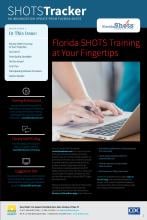
… Software Providers Upload Update Florida SHOTS Blog Find the latest immunization news and system updates. www.flshotsusers.com/blog Access real-time Florida SHOTS information, training, … Feel free to refer them to our Parents and Guardians page where they can: • Download certification of …
Page
Page
… Unknown Which lists would you like to subscribe to? General Blog updates Health care provider Medical software provider …
File
File
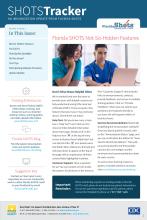
… Software Providers Upload Update Florida SHOTS Blog Find the latest immunization news and system updates. www.flshotsusers.com/blog Access real-time Florida SHOTS information, training, … on it to show (or hide) detailed information about each page. Simply click on the help text icon “?” at the top of …
File
File

… Tech Tips Participating Software Providers Florida SHOTS Blog Find the latest immunization news and system updates. www.flshotsusers.com/blog Access real-time Florida SHOTS information, training, … of Florida SHOTS for your office? The Immunization Status page with minimum/maximum dates for vaccines, really helps …